Keeping a laptop free of dust, fingerprints, and smudges helps maintain screen clarity and overall cleanliness. This guide walks through safe, practical steps using common tools designed for electronics, with attention to screen safety and surface care.
The approach balances effectiveness with careful handling to avoid damage to screens, keyboards, and sensors. Readers will find a concise Quick Answer, a complete Step-By-Step, and practical tips to prevent future buildup.
Quick Answer
Gently remove loose dust with compressed air, then wipe surfaces with a lint-free microfiber cloth dampened with a small amount of isopropyl alcohol or use dedicated electronics wipes. Finish with a dry pass and avoid excess moisture near ports.
What You’ll Need
Gather these tools and supplies to safely wipe a laptop:
- laptop screen cleaning kit microfiber cloth spray bottle
- lint-free microfiber cloth for laptop screen
- compressed air duster for laptop cleaning
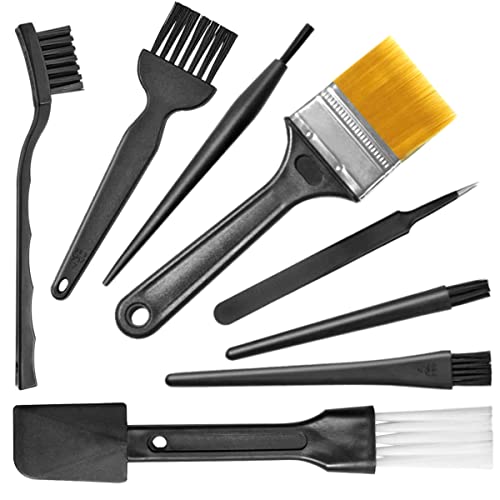
- anti-static brush for electronics and laptop
- isopropyl alcohol wipes for electronics laptop screen


Before You Start
Prepare a clean, well-lit workspace. Power down the laptop and unplug it from any power sources. If possible, remove the battery or disconnect peripherals to minimize risk. Work slowly and use minimal moisture; never spray liquids directly on the screen or keyboard. Avoid harsh solvents, ammonia-based cleaners, and abrasive materials as these can damage coatings and plastics.
Time estimate: 10–15 minutes for a thorough wipe, depending on the level of grime. Regular maintenance can take ~5 minutes. Remember to test any cleaner on a small, inconspicuous area first.
Step-By-Step: How To Wipe Clean A Laptop
- Power down completely and unplug. If removable, take out the battery for extra safety.
- Use a compressed air duster for laptop cleaning to blow dust from the keyboard, vents, and ports. Hold the can upright and short bursts to avoid moisture discharge.
- Lightly wipe the screen with a lint-free microfiber cloth for laptop screen. Use vertical strokes and avoid pressing hard to prevent image distortion or pressure damage.
- If smudges persist, lightly dampen the microfiber cloth with a small amount of isopropyl alcohol wipes for electronics laptop screen or a dedicated screen-cleaning solution. Never spray liquid directly on the screen; apply to the cloth first.
- Gently wipe the laptop lid, keyboard deck, and palm rest with the damp cloth. For the keyboard, use a anti-static brush for electronics and laptop to dislodge dust from between keys.
- Use a dry edge of the lint-free microfiber cloth for laptop screen to remove any residual moisture. Ensure screens and surfaces are completely dry before powering back on.
- Pay attention to ports and hinges. If residue is stubborn near openings, use a cotton swab lightly moistened with isopropyl alcohol or a dedicated electronics wipe, then dry immediately.
- Inspect the screen for streaks. If necessary, repeat with clean sections of the microfiber cloth, avoiding circular pressure that can create smudges.
- Reassemble and power on to confirm all components function normally. Store cleaning supplies out of reach of children and pets.
- Establish a routine: a quick weekly wipe and a deeper monthly cleaning depending on usage and environment.
Troubleshooting
| Symptom | Likely Cause | Fix | Pervention |
|---|---|---|---|
| Streaks on screen after wipe | Excess moisture or dirty cloth | Use a dry microfiber pass with a clean section | Follow damp-dry method; use high-quality cloth |
| Cloudy or scratched display | Rubbing with abrasive material | Stop using improper cloth; switch to lint-free microfiber | Use gentle, straight motions |
| Dust returns quickly | Static buildup or vents clogged | Clean with anti-static brush; clean vents; re-check room humidity | Regular cleaning routine |
| Liquid damage near keyboard | Moisture seeping under keys | Dry immediately with a cloth; avoid liquids near gaps | Apply moisture only to cloth, not directly to keyboard |
Common Mistakes
- Spraying liquids directly onto the screen or keyboard
- Using ammonia-based cleaners or acetone on coated surfaces
- Applying excessive moisture or pressure
- Neglecting keyboard and vent areas during cleaning
Sticking to manufacturer-recommended products helps protect coatings and ensures better long-term performance.
Tips For Best Results
- Always start with dry dusting using the compressed air duster for laptop cleaning to minimize moisture exposure.
- Prefer a lint-free microfiber cloth for laptop screen over paper towels or abrasive fabrics.
- For stubborn grime, choose isopropyl alcohol wipes for electronics laptop screen with at least 70% alcohol content and avoid high-alcohol concentrates on coatings.
- Keep cleaning sessions short and gentle to preserve screen integrity and key responsiveness.
- Store cleaning tools in a dedicated case to prevent cross-contamination and damage to other electronics.
Call A Professional
Seek professional help if the laptop has liquid damage, persistent screen discoloration, or if cleaning requires disassembly to access internal components. Stop cleaning and contact support when you notice unusual behavior or electrical smells, warm temperatures beyond normal operation, or residue that cannot be removed safely.
FAQ
What is the safest cleaner for a laptop screen?
Use a dedicated electronics cleaning solution or isopropyl alcohol wipes designed for screens, applied to a microfiber cloth.
Can I use water to clean my laptop screen?
Water alone is not recommended; use distilled water or electronics-safe cleaners on a cloth, never spray directly on the screen.
How often should I clean my laptop?
Wipe weekly for light maintenance; perform a deeper clean monthly or as needed in dusty or humid environments.
Is it safe to use alcohol-based wipes on the keyboard?
Yes, with caution. Use wipes sparingly and avoid excess moisture entering gaps between keys.
Will cleaning affect touch sensitivity?
Proper technique with a mild cleaner and dry cloth should preserve touch responsiveness; avoid harsh liquids and excessive pressure.
Buying Guide
When selecting products for cleaning a laptop, consider size, material, and compatibility with electronics. A compact screen cleaning kit often includes a microfiber cloth and a spray bottle, while a dedicated anti-static brush helps remove dust without generating static. Look for lint-free microfiber cloths to prevent fibers from sticking to the screen. Ensure any wipes are labeled safe for electronics and screens. Consider a compressed air duster with a comfortable spray mechanism and adjustable bursts to control airflow. Finally, ensure tools are compact and portable for on-the-go maintenance, and keep them organized to encourage regular use.