Keeping GPU fans clean helps maintain cooling efficiency and prolongs the life of a graphics card. This guide provides practical steps, using common computer cleaning tools, to remove dust without damaging sensitive components. It emphasizes safe handling, appropriate tools, and test-aftercare to ensure optimal performance.
Quick Answer
Quick method: Power down the PC, unplug, remove the side panel, and use a combination of compressed air with a precision nozzle and a soft brush to dislodge dust. Finish with a microfiber cloth to wipe accessible fins. Always avoid touching the GPU’s circuitry and use anti-static precautions.
What You’ll Need
- Compressed air duster with precision nozzle for PC components – for targeted dust removal without moisture
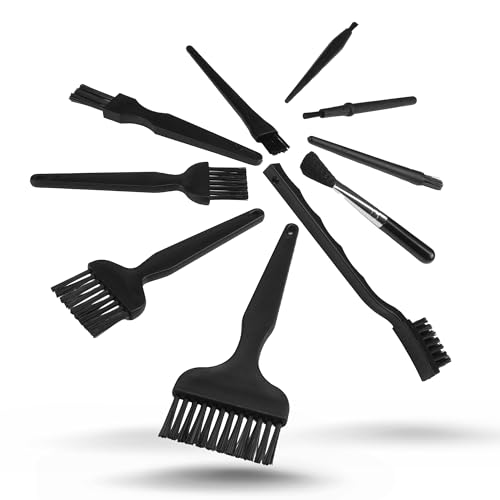
- Anti-static electronics cleaning brush set for computer fans – gentle agitation that reduces static risk
- Microfiber anti-static cleaning cloth for GPU cooling fins – safe surface wipe
- 5-in-1 electronics cleaning kit with soft brush and dust blower for GPUs – versatile, compact option
- ESD-safe computer dust vacuum with nozzle for GPU fans – for controlled debris suction near critical parts

![MoKo 400x300mm DIY PC Case Dust Mesh Filter, [2 Pack] PVC Dustproof Magnetic Dust Filter Cover, PC Mesh Grill with Magnetic Frame Strip Computer Cooler Fan Dust Filter for Computer PC Case, Black](https://m.media-amazon.com/images/I/61aJ1rreFkL._SL500_.jpg)
Before You Start
Prepare a clean workspace and power down the computer completely. Disconnect the power cable and press the power button to discharge any residual charge. If possible, remove the GPU from the motherboard for thorough access. Wear an anti-static wrist strap if available and avoid using metal tools near the GPU’s contact points. Time estimate: 15–30 minutes for disassembly, cleaning, and reassembly, depending on the case design.
Step-By-Step: How To Clean GPU Fans
- Power off the PC, unplug, and disconnect any peripherals. Remove the side panel to expose the GPU and fans.
- If the GPU is removable, carefully detach it from the motherboard following the case manual. Otherwise, work with the card seated in the PCIe slot.
- Hold the card at an angle and use compressed air with the precision nozzle to blow dust off the fan blades from the outer edges toward the center. Short bursts prevent moisture buildup and heat.
- Switch to the anti-static electronics cleaning brush set. Gently brush the fan blades and heatsink fins to loosen stubborn debris. Avoid applying excessive pressure on the motor housing.
- Wipe accessible surfaces with a microfiber anti-static cleaning cloth to remove fine dust and oil residues. Use light, even strokes; don’t rub the fan bearings or fan hub.
- For stubborn buildup in tight places, switch to the 5-in-1 electronics cleaning kit’s soft brush or dust blower, moving slowly to prevent debris from dislodging into the GPU.
- If residual dust remains inside the fan shroud, consider using an ESD-safe computer dust vacuum with a narrow nozzle to capture particles without contacting electronics. Keep the nozzle at a safe distance and avoid touching the fan blades directly.
- Reattach any removed components, reseat the GPU, and reconnect power. Before powering on, visually inspect for loose cables or obvious dust clumps.
- Power up and run a quick stress test or monitoring software to confirm fan operation and cooling performance after cleaning.
- Schedule regular cleanings every few months, depending on environment, to sustain thermal performance and reduce dust buildup.
Troubleshooting
| Symptom | Likely Cause | Fix | Prevention |
|---|---|---|---|
| Fan not spinning after cleaning | Stuck bearing or static damage | Gently rotate blades by hand (when card is removed) and recheck connections | Handle with care; avoid forceful brushing near bearings |
| Whistling or grinding noises | Debris lodged in blade tip or shroud | Re-clean with brush, check for bent blades | Use soft, short bursts of air |
| Visible dust on heatsink fins | Dust migration from fans | Brush and air from multiple angles to dislodge | Regular cleaning in high-dust environments |
| Fan runs but GPU overheats | Dust reduced airflow | Ensure fans are functioning and heatsink is clear | Periodic maintenance aligns with usage patterns |
Common Mistakes
- Using a high-moisture cleaning method near electronics
- Tapping or striking blades to dislodge dust
- Brushing against bearings or hub areas
- Leaving wipes or fibers on the fan or heatsink
- Rushing disassembly or reassembly without checking connectors
Taking a methodical approach reduces risk and preserves GPU longevity. For best results, combine several tools from the list to cover different dust pockets and confirm fan responsiveness after each step.
Tips For Best Results
- Perform cleaning in a low-dust environment or use a dedicated workstation mat to collect debris.
- Always blow dust in the direction of airflow to avoid redepositing dust onto the GPU or motherboard.
- Disassemble only if necessary; many cards allow cleaning with the card mounted, but removal improves access.
- Keep a log of cleaning intervals to anticipate future maintenance needs based on environmental exposure.
- After cleaning, monitor GPU temperatures during initial use to confirm improved airflow.
Call A Professional
Consider professional help if any of the following apply: the GPU is under warranty with specific cleaning restrictions, signs of liquid damage, or internal components appear loose or damaged after cleaning. If you notice unusual electrical smells, rapid overheating after cleaning, or loud or abnormal fan behavior, seek service from a qualified technician.
FAQ
Is it safe to use compressed air on GPU fans?
Yes, when used in short bursts and with the nozzle at a safe distance. Avoid prolonged bursts and ensure the PC is powered off and unplugged.
Can I clean my GPU without removing it from the PC?
Often yes, but removal provides better access. Follow the case and motherboard manual for safe detachment if needed.
Should I oil or lubricate GPU fan bearings after cleaning?
Generally not required; most fans are sealed. If a bearing issue is suspected, replace the fan rather than add lubricant.
How often should I clean GPU fans?
Frequency depends on environment; in dusty rooms, every 3–4 months is common. More frequent maintenance is advised for pets, smoking, or high-dust areas.
What if dust keeps returning quickly?
Consider improved airflow in the case, better filtration, or elevating the PC from dusty surfaces. Regular cleanings become a longer-term routine.
Will cleaning affect warranty?
Most cleaning performed carefully does not void warranties, but always check the manufacturer’s terms for guidance.
Buying Guide
Choosing the right tools for GPU fan cleaning depends on user preference, budget, and cleaning frequency. Consider how often you clean, your working space, and whether you prefer a single multi-tool kit or individual specialty tools. Below are key buying factors to help decide.
Size and Reach
Smaller, precision nozzles are ideal for tight gaps between fans and heatsinks. A compact kit with multiple brush widths can cover different areas effectively.
Noise Level and Comfort
Quiet operation is important in shared spaces. Look for tools that are easy to handle for extended sessions and reduce vibration or noise when used near sensitive components.
Cleaning Power and Control
Combination kits with a dust blower, soft brushes, and anti-static cloths provide controlled cleaning without moisture. Ensure tools offer gentle, non-abrasive contact with delicate surfaces.
Safety and Static Protection
ESD-safe options and anti-static brushes help minimize risk. An anti-static wrist strap is a low-cost safeguard for DIY cleaning.
Compatibility and Versatility
Electronics cleaning kits that cover multiple components (fans, heatsinks, and card surfaces) save time and money. Look for kits that include microfiber cloths and cleaning solutions suitable for electronics.
Storage and Convenience
Keep tools in a dedicated case or bag to prevent loss and ensure readiness for future cleanings. Labeling helps when you have multiple kits or brands.
Price and Value
Invest in a reputable set with durable brushes and reliable airflow tools. While prices vary, a balanced kit that covers essential needs is typically the most cost-effective choice for regular maintenance.