Print quality issues such as lines, streaks, or gaps are common with home inkjet setups. This guide provides practical steps to diagnose and fix printer line problems, using standard maintenance tools and supplies designed for inkjet printers. A careful cleaning and alignment routine can restore crisp lines without needing professional service.
Quick Answer
Start with a nozzle check to identify which colors are affected, then perform a cleaning cycle. If lines persist, use a targeted nozzle cleaning fluid and a cleaning swab. Run a printer alignment after cleaning to reestablish precise printhead positioning. For persistent issues, replace worn or clogged printhead components.
What You’ll Need
- Inkjet printer head cleaning kit
- Printhead alignment tool for inkjet printers
- Printer maintenance kit for inkjet printers
- Nozzle check and cleaning fluid for inkjet printers
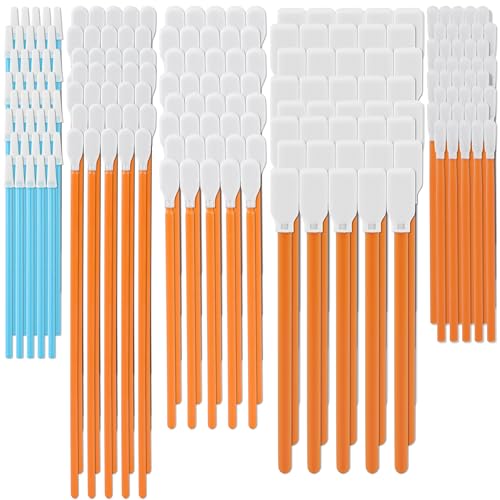
- Printer cleaning swabs and solvent kit


Before You Start
Ensure the printer is on a flat, stable surface in a dust-free area. Use fresh ink cartridges or refilled tanks recommended by the manufacturer. Begin with a full nozzle check to map out affected colors. Safety note: avoid exposing skin to cleaning fluids and follow manufacturer guidelines for dwell times between cleaning cycles. Estimate 20–60 minutes for the entire process depending on the number of affected colors.
Cautions: Do not over-clean a printhead, as excessive cleaning can wear the nozzles. If the printer has a service mode, use it only as intended by the manufacturer. Keep minimal moisture around critical components to prevent electronic damage.
Step-By-Step: How To Get Rid Of Lines When Printing
- Run a Nozzle Check: Print the nozzle check pattern to identify which color channels are missing or streaked. Note the pattern deviations for reference during cleaning.
- Perform a Basic Cleaning: Use the printer’s built-in cleaning utility to flush the affected color channels. Run 1–2 cycles and reprint the nozzle check pattern.
- Use Targeted Cleaning: If lines persist, use a nozzle cleaning fluid and a sterile swab to gently wipe the printer head surface along the direction of travel. Avoid excessive rubbing to prevent head damage.
- Rinse and Dry: If your kit includes a rinse step, lightly wipe with a clean swab and allow the head to air dry for a few minutes before testing again.
- Repeat Cleaning If Needed: Perform another round of targeted cleaning if gaps or lines remain after the initial pass. Do not exceed three consecutive targeted cleanings in a row.
- Reprint After Cleaning: Print a new nozzle check pattern. Compare results to the original to confirm improvement across all colors.
- Run a Printhead Alignment: If lines are misaligned or colors appear shifted, use the printhead alignment tool to calibrate the head positions. Follow the on-screen or paper-based alignment sequence.
- Print a Test Page: Use a simple test page with solid blocks and gradients to verify even ink distribution and line consistency across the page.
- Check Paper and Cartridges: Ensure paper type and thickness are appropriate for your printer and that cartridges are properly seated and not low on ink.
- Inspect for Dry Run Artifacts: If lines appear only at the start of the page, inspect the initial nozzles and consider a light cleaning of the feed rollers if recommended by the manufacturer.
- Final Verification: Run another nozzle check and a full-color test image to confirm stable lines across the print.
- Document The Process: Note which steps solved the issue for future reference and to track when maintenance is due again.
Troubleshooting
| Symptom | Likely Cause | Fix | Prevention |
|---|---|---|---|
| Lines or gaps in multiple colors | Clogged printhead or stale ink | Nozzle check and cleaning, targeted head cleaning | Regular cleaning, use ink as recommended |
| Only one color misaligned or faded | Misalignment or clogged channel | Printhead alignment and targeted cleaning | Consistent use of the printer, avoid long idle times |
| Premature streaks at page edge | Drying or feed-related artifacts | Check paper type, run drying/ink flow assist | Correct paper type and storage |
| Head touch-up after cleaning worsens lines | Over-cleaning or fluid residue | Let head dry completely, reduce cleaning frequency | Follow kit instructions precisely |
Common Mistakes
- Over-cleaning the printhead, which can wear or degrade the nozzles
- Using household solvents not designed for inkjet heads
- Ignoring alignment after cleaning, leading to persistent line issues
- Running prints while cleaning fluids are still damp on the head
Tips For Best Results
- Maintain a regular cleaning schedule to prevent buildup before it causes lines
- Use manufacturer-approved cartridges and following the recommended maintenance interval
- Store ink cartridges upright to prevent leakage and sedimentation
- Run a test page after any major cleaning to confirm full restoration of print quality
Call A Professional
Stop and seek expert help if
- The printhead shows persistent damage or cannot be cleaned effectively
- Multiple cleaning cycles fail to improve lines or cause printer errors
- Head replacements or internal component servicing are required
FAQ
Why do lines appear after cleaning my inkjet printer?
Lines usually indicate clogged nozzles or misalignment. A nozzle check and a sequence of cleanings, followed by alignment, typically resolves the issue.
Can I use any cleaning fluid on my printhead?
Use only fluids designed for inkjet printheads and compatible with your printer model to avoid damage.
How often should I run nozzle checks?
For printers with moderate use, once a month is reasonable; heavy users may perform checks weekly.
What should I do if lines reappear after several days?
Revisit nozzle checks, verify ink levels, and consider recalibrating alignment. If problems persist, professional service may be necessary.
Is it safe to run printhead cleaning with the printer off?
No. Always follow the manufacturer’s instructions for powering the device and performing cleaning cycles.
Buying Guide
Choosing accessories for maintaining print quality involves several factors. Consider size and compatibility with your model when selecting a printer maintenance kit and nozzle cleaning fluid. Noise level and energy use are often secondary to reliability, but quiet operation can matter in home offices. Look for a kit that includes inkjet printer head cleaning tools, a printhead alignment accessory, and reliable cleaning swabs. Ensure the kit covers common printhead needs without introducing overly aggressive chemicals. Placement should keep the printer away from direct sunlight and excess humidity while providing easy access for routine maintenance.
When comparing options, evaluate the completeness of the kit (includes swabs, solvents, alignment tools, and fluids), compatibility with your printer brand, and user reviews on effectiveness. A balanced set of tools helps reduce downtime and maintain consistent print quality. If your printer model has specialized maintenance requirements, prioritize official or brand-approved accessories to minimize risk.