Photoshop line cleanup is a common task in photo retouching and digital illustration. This guide outlines practical, step-by-step methods to refine and sharpen lines while preserving natural texture and structure. It also shows how the right hardware can improve precision and comfort during the process.
Whether you’re retouching portraits, painting over line art, or refining vector-like edges, a responsive tablet and stylus can make the job smoother. The following sections provide actionable steps, tools, and tips to achieve clean, professional results.
Quick Answer
To clean up lines in Photoshop, use a combination of the Pen Tool for clean vectors, the Brush Tool with a stabilizer for natural edges, and the Eraser for final touch-ups. Prefer a pressure-sensitive graphics tablet to maintain consistent line width and control, especially during detailed edits.
What You’ll Need
The following tools and materials are recommended to optimize line cleanup in Photoshop. The list prioritizes items that support precise editing and comfortable workflow.
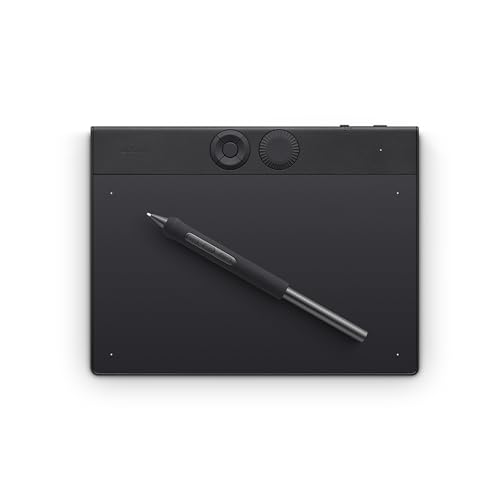
- Wacom Intuos Pro medium graphics tablet for photo retouching
- XP-Pen Artist Pro 16 pen display drawing tablet Photoshop
- Huion Inspiroy H640P graphics tablet pressure sensitivity for editing
- Stylus pen with 8192 pressure levels for Photoshop retouching
- High-precision graphics tablet for pixel-perfect line cleanup Photoshop


Before You Start
Prepare your workspace and settings before beginning the cleanup. Calibrate the tablet to ensure accurate tracking, set Photoshop to a comfortable zoom level, and enable smoothing or stabilization where available. If you’re working on high-resolution images, consider temporarily converting to a separate layer for non-destructive edits. Important cautions include keeping a clean brush tip, avoiding over-tightening settings that cause jitter, and saving incremental versions frequently to prevent data loss.
Step-By-Step: How To Clean Up Lines In Photoshop
- Open the image and create a new layer for line cleanup to maintain non-destructive editing.
- Use the Pen Tool (P) to trace over sharp, uneven lines. Create a path, then right-click and choose Stroke Path with a brush that matches your line weight.
- Switch to the Brush Tool (B) with a small, hard-edged brush for refining edges. Enable Shape Dynamics and adjust the size jitter to keep lines natural-looking.
- Enable a gentle Stroke Smoothing or use a stabilizing brush setting to reduce wobble when drawing with a tablet. Maintain a light hand to preserve texture.
- For pixel-perfect cleanup, use the Eraser Tool (E) on a separate layer to make precise adjustments without affecting the original line structure. Set a soft edge for subtle feathering.
- Apply Content-Aware Fill or the Clone Stamp tool to fill gaps or repair nearby areas that affect line continuity. Work on a new layer for easy removal if needed.
- Overlay a subtle Gaussian Blur (light amount) on a duplicate layer to unify jagged edges, then mask out areas where blur is undesirable.
- Inspect at 100% zoom and switch to Show Edges or a high-contrast view to verify line accuracy. Make final micro-adjustments with the Brush or Pen Tools.
- Group related adjustments into a named layer folder for easy toggling and non-destructive editing.
- Save your work in a PSD to preserve layers, then export a copy in a suitable format for sharing or publication.
Troubleshooting
| Symptom | Likely Cause | Fix | Prevention |
|---|---|---|---|
| Lines look jagged after export | Insufficient anti-aliasing or compression | Export at higher quality settings; keep vector-like edits on a separate layer | Maintain original resolution during edits |
| Tablet lag or jitter | Driver issue or settings conflict | Update drivers; adjust tablet sensitivity and brush smoothing | Use a clean USB connection and avoid multiple input devices |
| Brush strokes mismatch edge of line | Inconsistent brush size or dynamics | Lock brush size or adjust Shape Dynamics to your workflow | Test brush presets before major edits |
| Edges bleed into surrounding areas | Too much eraser or blur | Use layer masks for clean separation; apply blur only on intended regions | Work with non-destructive masks |
Common Mistakes
- Relying on a single tool for all line cleanup; combine Pen, Brush, and Eraser for more natural results.
- Editing directly on the background layer; use separate layers to stay non-destructive.
- Over-sharpening lines, which creates an unrealistic, digital look.
- Ignoring light and texture; ensure line edits respect underlying shading and texture.
Tips For Best Results
- Use a pressure-sensitive tablet to vary line weight naturally. The stylus with 8192 pressure levels provides fine control for Photoshop retouching.
- Enable stabilization and smoothing on brushes used for line cleanup to reduce tremor and wobbles.
- Work on a neutral gray or mid-tone background to better judge line sharpness and contrast.
- Regularly compare edited areas with the original to preserve important details and avoid over-editing.
- Keep a consistent line style across the image to maintain visual coherence.
Call A Professional
Seek professional help if lines require complex restoration, such as heavily damaged art, intricate textures, or legal/forensic-grade editing. Stop and consult a specialist when:
- The line structure is foundational to the composition and any misstep could affect overall integrity.
- There are repeated errors across a large area that become time-prohibitive to fix manually.
- Color-critical or publication-grade work demands the highest fidelity and proofs exceed routine retouching capabilities.
FAQ
What is the best tool for cleaning up lines in Photoshop?
The Pen Tool for precision paths combined with a stabilizing Brush Tool workflow offers reliable results for clean, scalable lines.
Should I work on multiple layers?
Yes. Use separate layers for lines, edits, and corrections to keep changes non-destructive and reversible.
How can I preserve texture while cleaning up lines?
Limit heavy edits on shaded areas and use subtle brushes with smoothing to maintain natural texture.
Which hardware improves line cleanup efficiency?
Graphics tablets like the Wacom Intuos Pro, XP-Pen Artist Pro 16, and Huion Inspiroy H640P provide accurate pressure sensitivity and precise control for Photoshop retouching.
Buying Guide
When evaluating hardware for line cleanup in Photoshop, consider size, feel, and performance. Larger tablets offer more comfortable line work for detailed cleanup, while smaller devices travel well for on-the-go editing. Noise and latency are important factors; look for low latency, responsive pens, and good palm rejection. Energy efficiency is less critical for desktop workflows but can matter for battery-powered displays. Controls, such as customizable express keys and touch rings, speed up repetitive tasks. Placement—whether you work on a stand or a traditional desk setup—affects ergonomics and comfort during long sessions. Compare devices based on pixel density, tilt support, and compatibility with Photoshop to ensure a smooth, precise cleanup process. Would a display tablet or a traditional drawing tablet suit your workflow better? Consider your typical projects, preferred brush sizes, and whether you value on-screen drawing directly or prefer a separate monitor for inspection.>