Efficiently removing old thermal paste from a CPU is essential for optimal heat transfer and cooling performance. This guide walks through a safe, practical method using common electronics-cleaning supplies, with a focus on avoiding damage to delicate CPU components. The steps emphasize gentle technique, proper drying time, and verification of a clean surface before applying fresh paste.
Readers will find practical tips for surface preparation, choosing the right cleaning materials, and minimizing residue that could affect thermal conductivity. The goal is to restore a pristine contact surface ready for new thermal paste and a secure heatsink installation.
Quick Answer
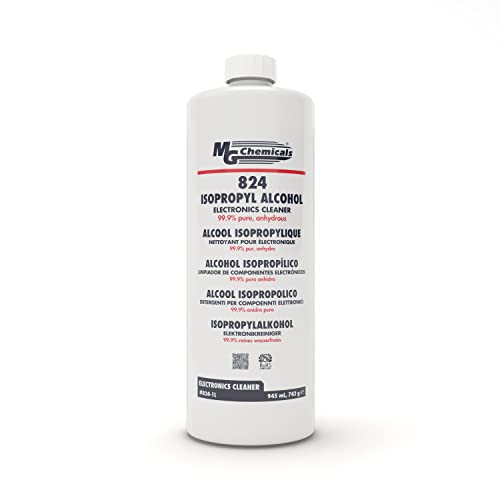
Use isopropyl alcohol (preferably 99% or higher) applied to a lint-free microfiber cloth or cotton swab to wipe away old paste in small, circular motions. For stubborn residue, a plastic scraper can lift paste without scratching the CPU’s IHS. Allow the surface to air-dry completely before reassembling with fresh paste.
What You’ll Need
- 99% isopropyl alcohol electronics cleaning kit
- lint-free microfiber cloth for electronics cleaning thermal paste
- plastic scraper for thermal paste removal CPU
- thermal paste remover gel electronics kit
- anti-static electronics cleaning brush kit


Before You Start
Before beginning, power down the computer and disconnect all cables. Ground yourself to prevent static damage to the CPU and motherboard. Work on a clean, non-conductive surface and have a small container for used rags. Plan for a total cleanup-and-repaste session of about 20–40 minutes depending on CPU complexity. Avoid touching the CPU pins and socket contacts to minimize the risk of damage.
Step-By-Step: How To Clean Thermal Paste Off CPU
- Power down the system and unplug the power supply. Remove the heatsink assembly carefully to expose the CPU surface.
- Detach the heatsink fan assembly if needed and set aside in a safe area to prevent accidental damage.
- Wipe the CPU surface gently with a small amount of 99% isopropyl alcohol on a lint-free microfiber cloth to remove the bulk of the paste.
- For stubborn or dried paste, apply a drop of alcohol to a cotton swab and work in small circular motions until residue loosens.
- Use a plastic scraper to gently lift any remaining film. Keep the pressure light to avoid scratching the IHS.
- Repeat alcohol application and cloth wiping until the surface looks clean and free of paste, leaving no residue or color change.
- Allow the CPU surface to air-dry completely for several minutes. Check that there is no dampness before reapplying paste.
- Apply a thin, even layer of fresh thermal paste on the CPU IHS, or follow the paste manufacturer’s guidelines for ladling or X-pattern application, then reseat the heatsink firmly.
Troubleshooting
| Symptom | Likely Cause | Fix | Prevention |
|---|---|---|---|
| Visible paste residue remains after cleaning | Insufficient cleaning solvent or rubbing action | Reapply 99% isopropyl alcohol and gently scrub with microfiber cloth | Use fresh alcohol and clean, lint-free cloths |
| CPU surface feels tacky after cleaning | Incomplete drying | Let surface air-dry longer or use a dry microfiber cloth to wick moisture | Ensure complete evaporation before reassembly |
| Scratches on the IHS after cleaning | Razor-sharp scraper or excessive pressure | Switch to a plastic scraper and apply minimal pressure | Use only approved tools and light touch |
| Motherboard shows no POST after reassembly | Residue near socket or improper reattachment | Inspect for residue and reseat heatsink with even pressure | Double-check for loose cables and proper socket alignment |
Common Mistakes
- Using metal or sharp tools that can scratch the CPU’s IHS or socket contacts
- Rushing the drying step or using heat to accelerate evaporation
- Ignoring the need for a clean, dust-free workspace
- Reapplying excessive amounts of paste or not letting the surface fully dry
Tips For Best Results
- Prefer 99% isopropyl alcohol for faster evaporation and less residue.
- Work in a well-lit area to detect any remaining paste more easily.
- Keep a steady, light touch with the plastic scraper to avoid scratches.
- Use a fresh, lint-free cloth for each cleaning pass to prevent recontamination.
- Follow the thermal paste manufacturer’s instructions for reapplication patterns for consistent contact.
Call A Professional
If the CPU or motherboard shows signs of damage, such as bent pins, discolored sockets, or failure to POST after cleaning and reassembly, stop and seek professional service. Do not attempt forceful removal of components or continue troubleshooting beyond basic cleaning when hardware health is uncertain. Professional help is recommended for systems under warranty or high-value builds.
FAQ
What is the best solvent for removing thermal paste?
99% isopropyl alcohol is widely recommended for its fast evaporation and low residue.
Can I use household cleaners to remove thermal paste?
Avoid household cleaners; use electronics-safe solvents to prevent residue or corrosion.
Is it safe to reuse the CPU paste after cleaning?
It is generally better to replace old paste with a fresh layer to ensure optimal thermal transfer.
How long should the CPU surface dry before reassembling?
Allow several minutes for thorough evaporation; ensure there is no dampness before reassembly.
Buying Guide
When choosing gear to clean a CPU, consider factors such as solvent purity, fabric lint, and tool ergonomics. A complete kit often includes the essential items: high-purity isopropyl alcohol, lint-free cloths, a plastic scraper, a dedicated paste-remover gel, and an anti-static cleaning brush. Size and portability matter for DIY builders who work on multiple systems. Look for compact, non-fluid storage containers and tool sets that resist accidental spills.
For those prioritizing ease of use, a bundled electronics cleaning kit can simplify the process with integrated containers and ready-to-use wipes. Assess the compatibility with electronics, ensuring the products are safe for CPU surfaces and non-conductive to prevent shorts.
Noise level is less relevant in this context, but the energy efficiency of your workstation matters when you run full system tests after reassembly. Place your workspace in a clean, ventilated area away from heat sources, and keep small parts organized to avoid misplacing items during the cleaning sequence.