Digital portrait touch-ups often aim for natural-looking results, including subtle changes to the jawline and neck. This guide explains a practical, non-destructive workflow to reduce or remove a double chin in Photoshop while preserving skin texture and overall balance.
Quick Answer
Use non-destructive tools like the Liquify filter with carefully placed Forward Warp and Pucker adjustments, followed by a gentle Dodge & Burn to maintain realism. Stack multiple low-impact edits rather than a single heavy change to avoid obvious alterations.
What You’ll Need
- Wacom Intuos Pro medium graphics tablet for Photoshop retouching
- XP-Pen Artist Pro drawing tablet for photo editing
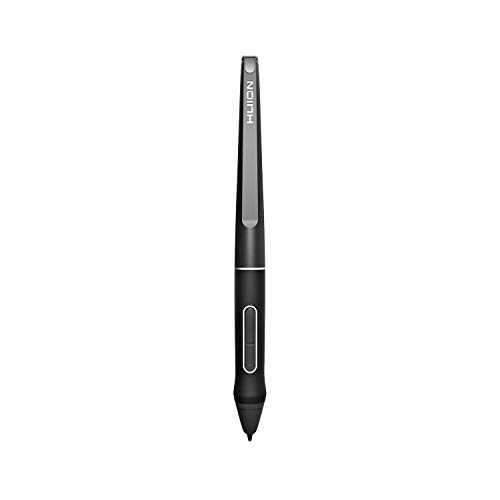
- Huion Kamvas Pro 16 pen display for Photoshop retouching
- Datacolor SpyderX color calibration tool for Photoshop monitors
- Wacom One by Wacom pen display for Photoshop retouching


Before You Start
Assess the subject’s features and lighting to decide how dramatic the adjustment should be. Work on a duplicate layer or a smart object to keep the original image untouched. Protect skin texture by avoiding over-smoothing. Plan changes to follow natural anatomy — the goal is subtle refinement, not an illusion of weight loss.
Estimated time for this edit ranges from 5 to 15 minutes depending on image complexity. Prepare a non-destructive workflow with masks and adjustable layers to revisit edits later if needed.
Step-By-Step: How To Correct a Double Chin in Photoshop
- Open the photo and duplicate the background layer. Rename the new layer to “Chin Refinement” for clarity.
- Use Liquify (Filter > Liquify) and select the Forward Warp tool at a low brush size. Gently push the chin area upward and outward, following the natural jawline. Alternate with Pucker or Bloat sparingly to refine the contour without creating halos.
- Hold the Show Edges option (in Liquify) to preview how changes affect skin edges, then click OK when satisfied with the shape.
- Apply a gentle Gaussian Blur on a masked layer if edges remain too sharp, but keep the effect subtle to preserve texture. Use a soft brush with low opacity on the mask to blend transitions.
- Add a new non-destructive adjustment layer for shadows and highlights. Use the Curves or Levels tools to refine tonal balance around the jawline and neck, ensuring the refined area matches surrounding skin.
- Use the Dodging and Burning tools on a separate masked layer to enhance subtle shading under the chin and along the neck, simulating natural depth without harsh lines.
- Sharpen only the areas that need crispness, and reviewed the result at 100% magnification to confirm texture preservation. If texture looks muddy, reduce the opacity or blend with a texture-preserving brush.
- Check color consistency with a quick color match using the Color Balance or Selective Color adjustments to ensure the skin tone remains uniform.
- Fine-tune the overall composite by comparing with the original on and off; toggle visibility of refinement layers to verify natural results. Save as a layered PSD for future edits.
- Export a final JPEG at a standard resolution, ensuring the subject’s proportions look natural across devices.
- Review the image at different zoom levels and on color-calibrated monitors to guarantee consistency.
Troubleshooting
| Symptom | Likely Cause | Fix | Prevention |
|---|---|---|---|
| Edges look obvious after Liquify | Over-expansion or aggressive brush | Reopen Liquify, reset, and apply smaller, iterative changes | Use smaller brushes and toggle Show Edges |
| Texture looks smooth or plastic | Over-smoothing on the skin | Mask and reduce blur; reintroduce texture with a Grain/Texture layer | Keep texture intact during edits |
| Color shifts around jawline | Tt tonal edits not balanced | Adjust with Curves/Levels on a masked layer | Calibrate monitor and color workflow |
| Chin area too flat or distorted | Misplaced warp or incorrect proportions | Reset and rework with careful reference to anatomy | Use reference lines and symmetry checks |
| Discernible halos after edits | Hard edge transitions | Feather masks and blur transition | Work with softened edges from the start |
Common Mistakes
- Relying on a single drastic Liquify pass instead of multiple gentle edits
- Ignoring neck and jawline proportional relationships
- Over-smoothing skin, leading to an artificial look
- Not using masks or smart objects to preserve original image data
- Forgetting to calibrate displays, causing color mismatches
Tips For Best Results
- Work on a duplicate or smart object to keep non-destructive edits.
- Keep a log of adjustments and label layers for quick revisiting.
- Use a calibrated monitor for accurate color and tone perception.
- Make iterative adjustments and compare with the original frequently.
- Save final edits in a layered format to facilitate future tweaks.
Call A Professional
Seek professional help if the subject’s facial structure is significantly altered or if professional retouching is required for publication standards. Stop and consult a pro when:
- Edits affect symmetry or proportional balance beyond acceptable limits
- High-stakes imagery demand exact realism and color fidelity
- Time constraints or lack of confidence with advanced tools
FAQ
Can I remove a double chin without Photoshop?
Other photo-editing apps offer similar liquify and warp tools, but Photoshop provides deeper control and non-destructive workflows essential for professional retouching.
Will removing a double chin affect facial expressions?
When done subtly, changes should be unnoticeable. Large alterations risk altering perceived expression.
Which tool should I use first for best results?
Start with Liquify to adjust structure, then refine with Curves/Levels for color and Shadows/Highlights for depth.
How can I preserve skin texture during retouching?
Work on separate masked layers, avoid heavy smoothing, and reintroduce texture with grain or texture overlays as needed.
Buying Guide
When selecting a setup for Photoshop retouching tasks like removing a double chin, consider display quality, input devices, and calibration accuracy. Below are key buying factors to help compare options.
- <bSize and display type: Larger screens with high color accuracy support intricate edits. Pen displays offer direct, precise control for retouching compared to standard tablets.
- <bPen pressure and precision: A responsive pen with good tilt support helps sculpt jawlines and contours smoothly.
- <bColor calibration: A monitor calibration tool ensures skin tones stay consistent across devices and edits.
- <bCompatibility: Ensure the device integrates well with Photoshop and your operating system, including drivers and software updates.
- <bErgonomics and workflow: Tablet displays reduce reliance on mouse movements, enabling more natural adjustments during portrait edits.
- <bPrice vs. features: Balance budget with features like color accuracy, pressure sensitivity, and display quality to fit the retouching needs.
- <bPlacement and space: Desktop setups with space for a drawing tablet and monitor can streamline multitasking